How it works
A test takes a few seconds. Here's what happens at each step, and what every check looks for.
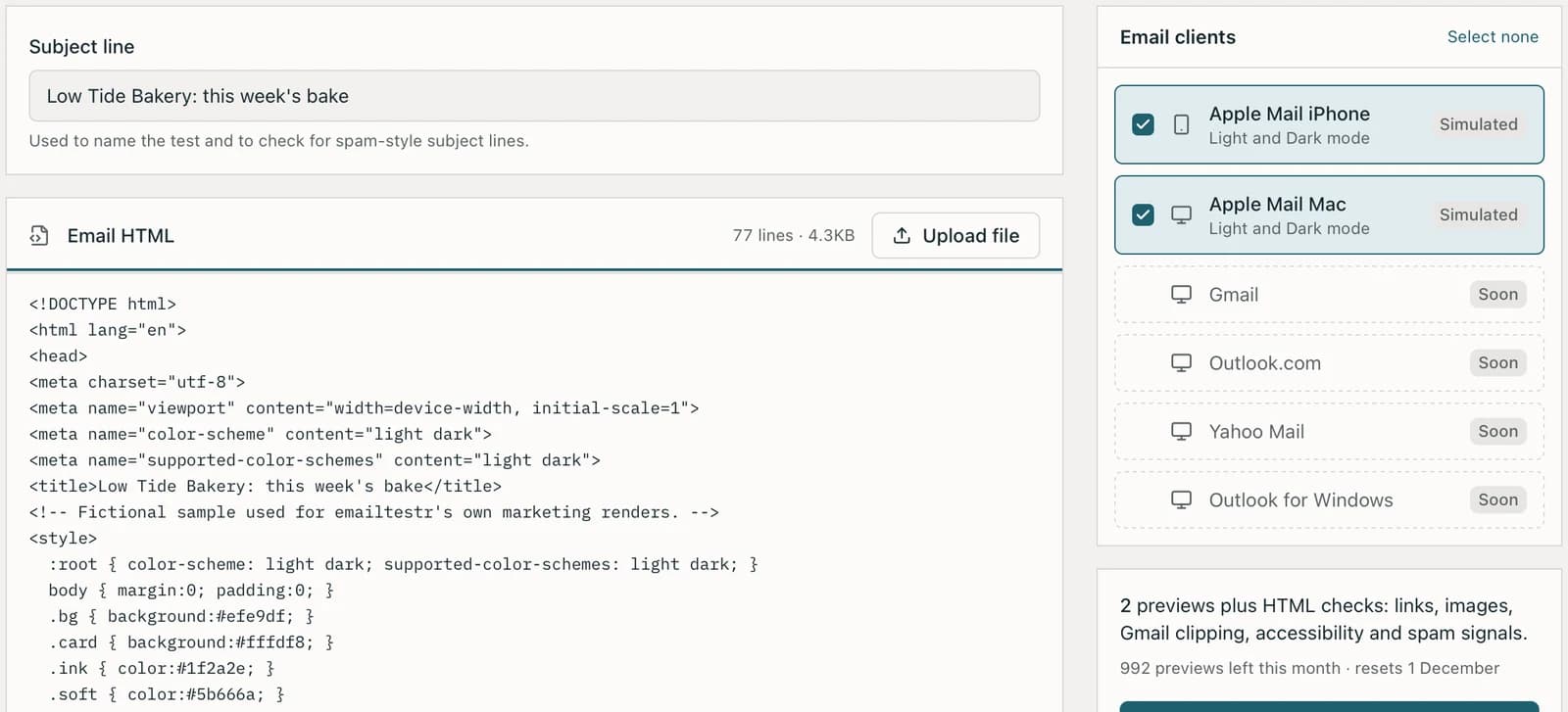
Add your email
Open New test, give it a subject line, then paste your HTML or drop an .html file onto the box. The counter shows the size as you go, and warns you if you're over Gmail's 102KB limit.
Or send it from your email platform. Every account has a private test address: send a test from Mailchimp, Klaviyo or any platform to it, and it arrives as a new test, exactly as the platform sent it, tracking links and all.
Pick the clients you want. Each client counts as one preview, and light and dark mode of the same client count once.
Look through the previews
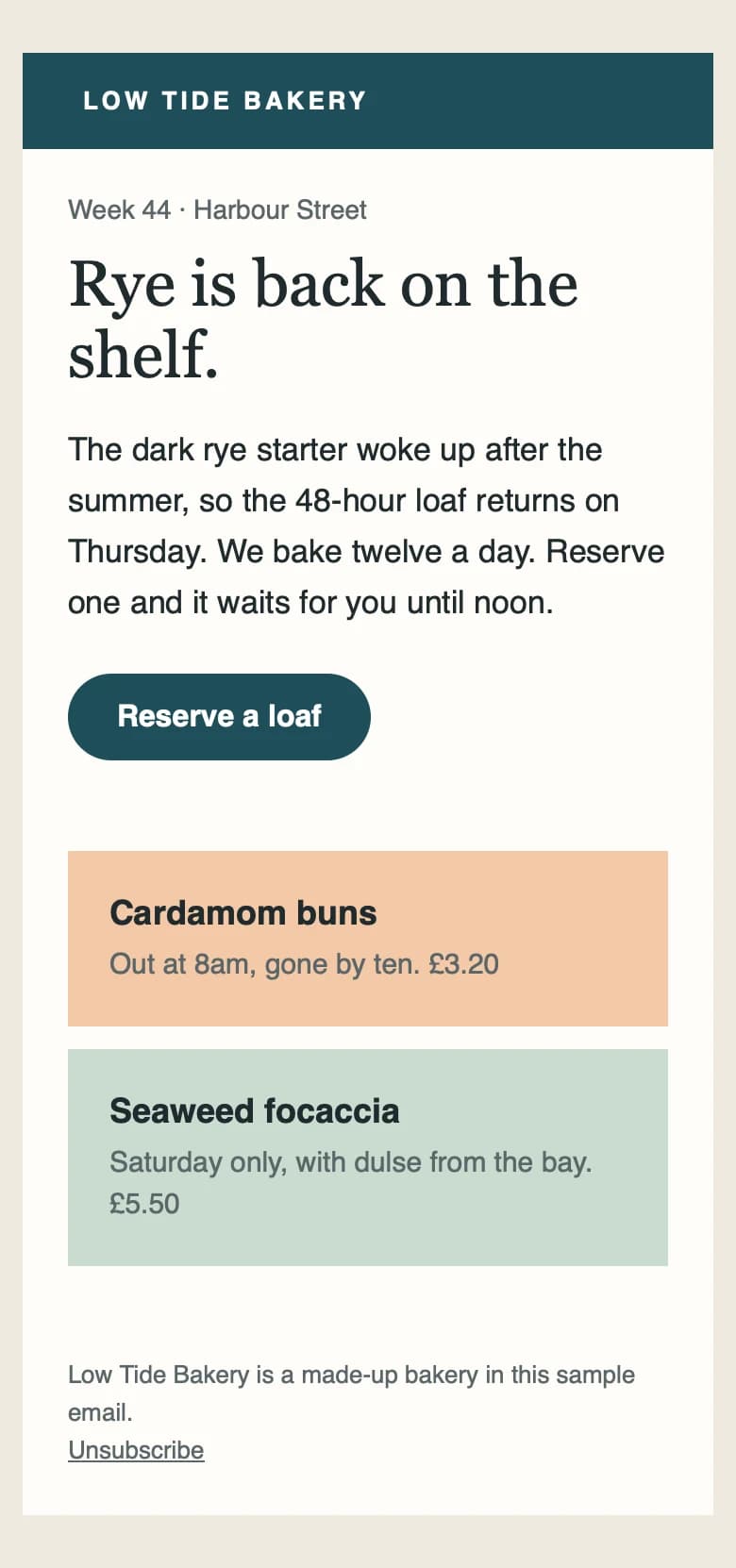
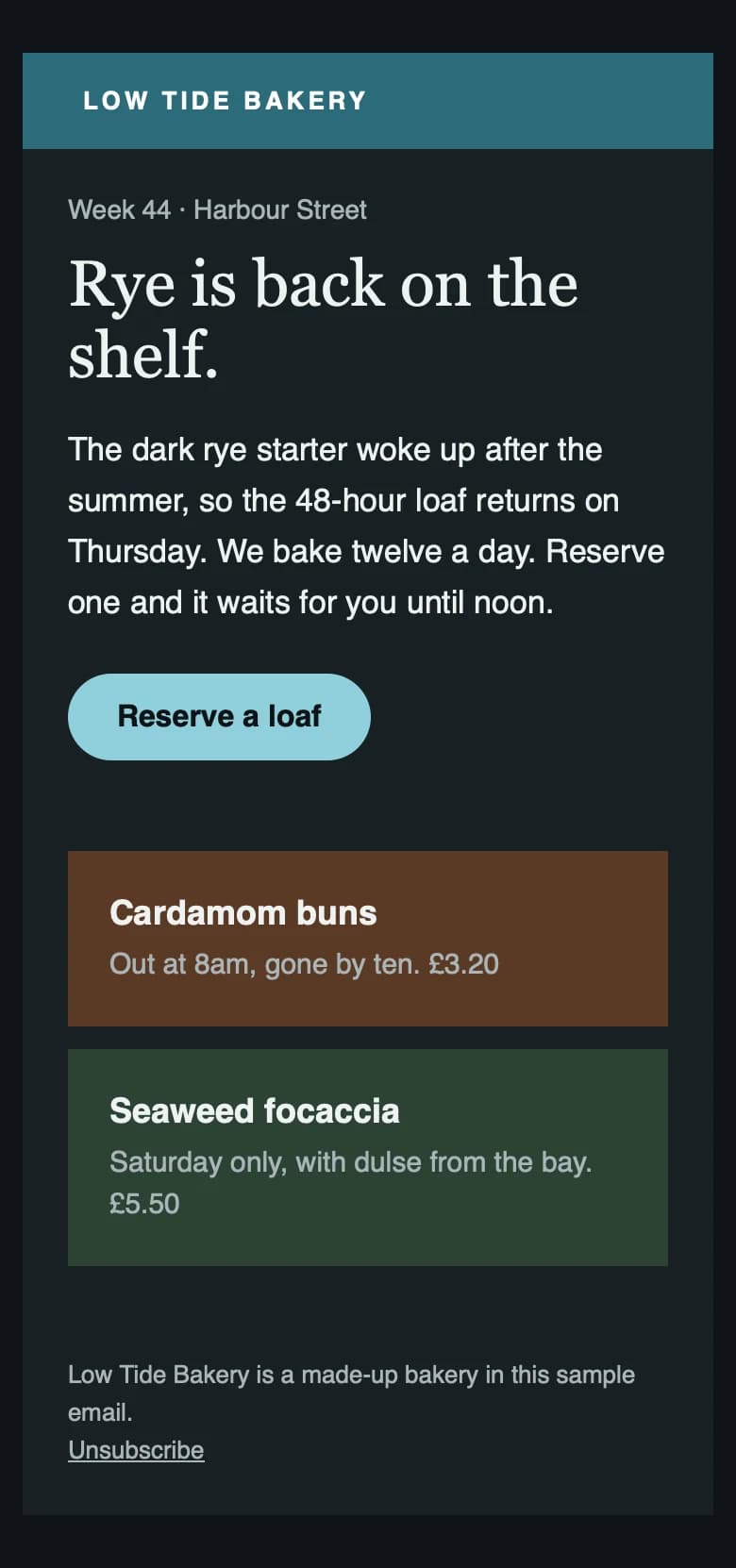
Within a few seconds you'll see your email in Apple Mail on iPhone and Mac, in light and dark mode. Filter by light or dark, or by phone or desktop.
Click any preview to open it full size. Use the arrow keys to move between previews and switch between light and dark at the top.
Light
Dark
Read the checks
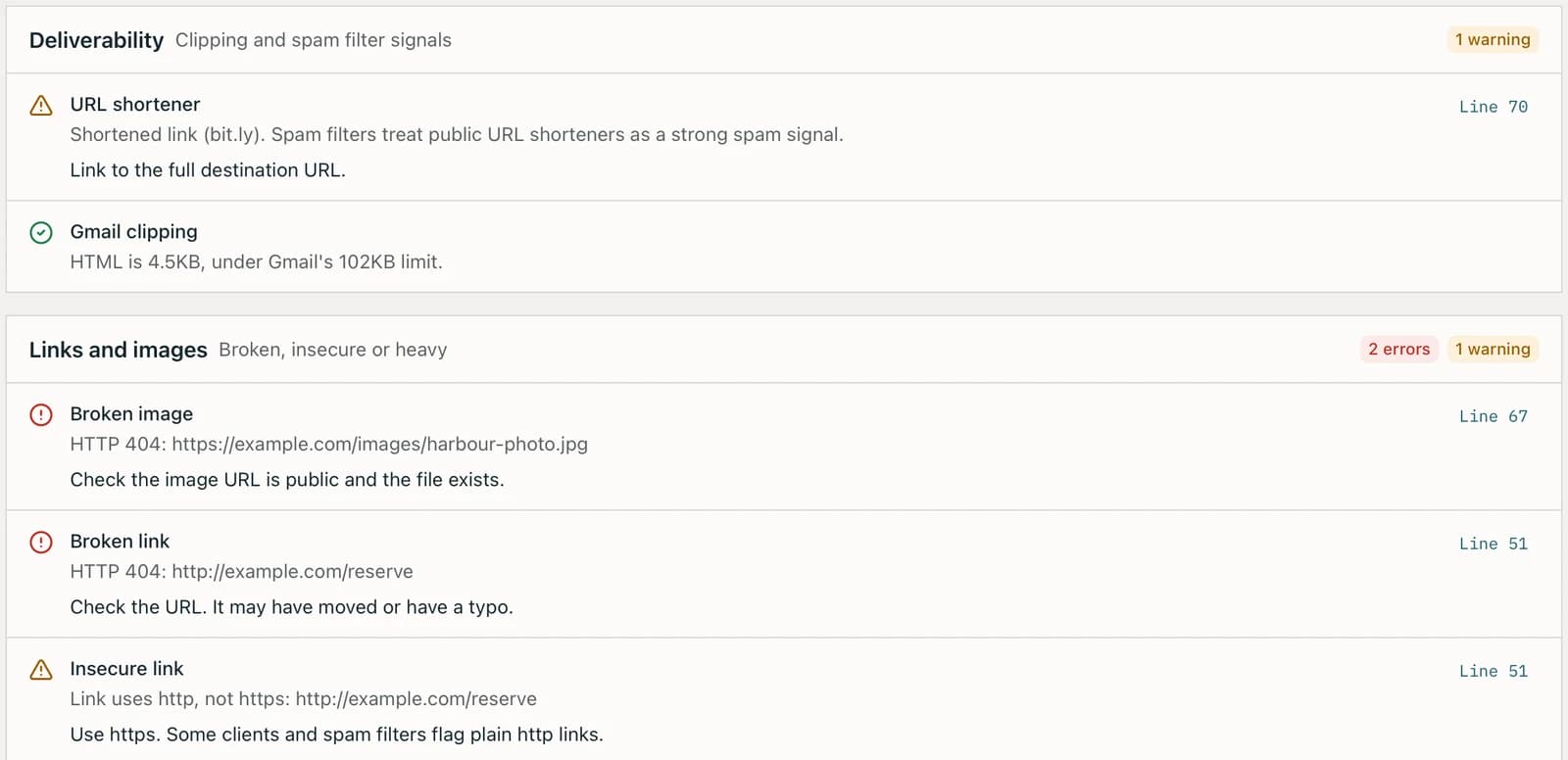
The Checks tab groups every result into deliverability, links and images, accessibility and best practice. Errors are things that will visibly break; warnings are worth fixing.
Each result says what's wrong and how to fix it. Where an issue is on a specific line, there's a line number next to it.
Fix it at the line
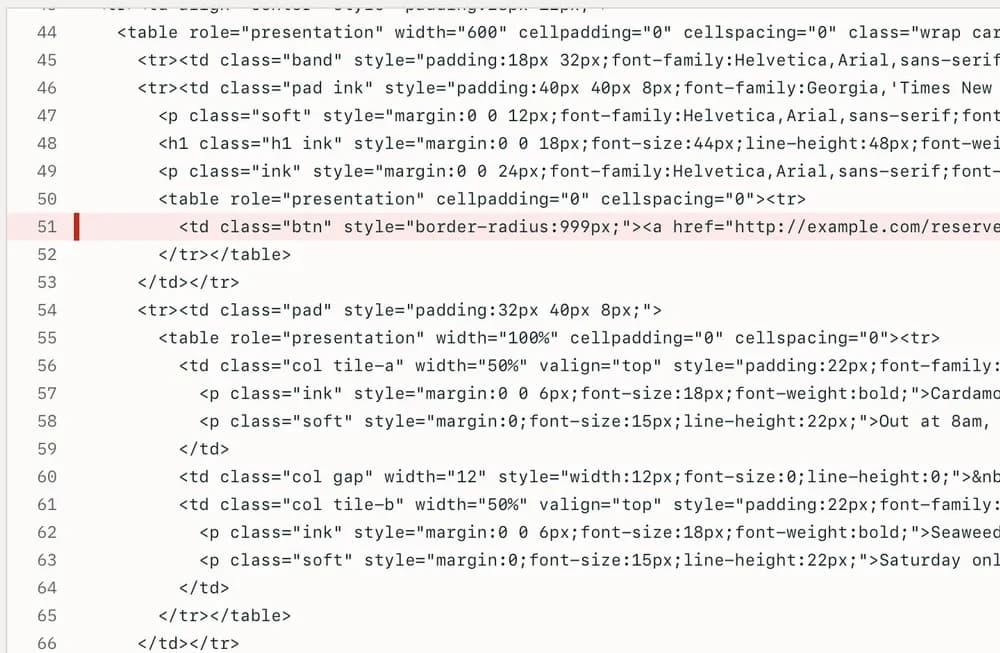
Click a line number and the Code tab opens at that line. Every line with a problem is highlighted: red for errors, amber for warnings. Hover a highlighted line to see what's wrong with it.
Re-run and keep track
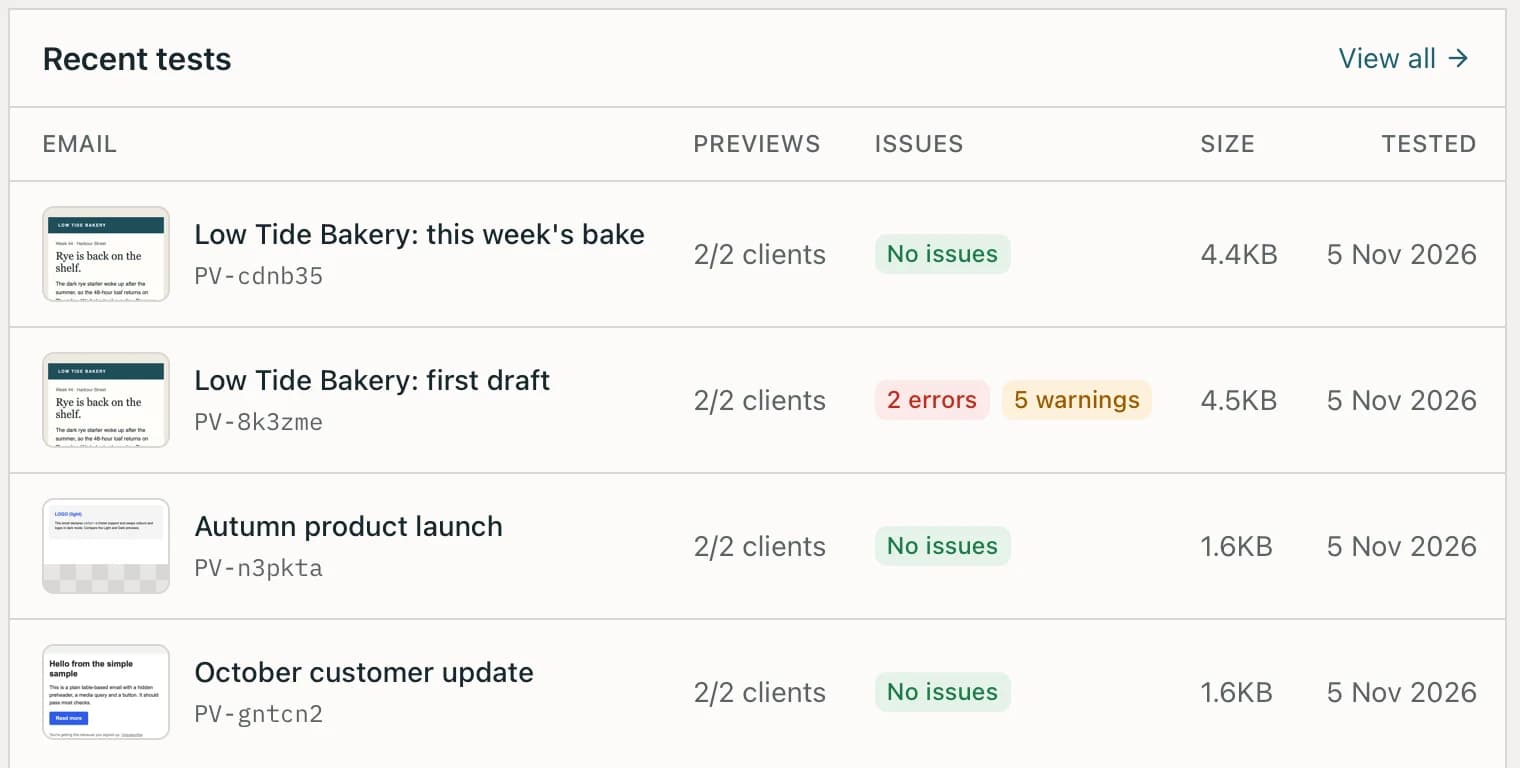
Fix the issues in your own editor, then paste the new HTML or press Re-run on the old test. Every test stays in your history, and the dashboard shows which mistakes keep coming up.
Every check explained
These run on every test, on every plan, including the free one.
| Check | What it catches | Level |
|---|---|---|
| Gmail clippingHTML over 102KB, and a warning from 90KB | HTML over 102KB, and a warning from 90KB | Error |
| Broken linksAny link returning an error or timing out after 10 seconds | Any link returning an error or timing out after 10 seconds | Error |
| Broken imagesImages that fail to load, including private network addresses | Images that fail to load, including private network addresses | Error |
| Image weightA single image over 1MB, or over 3MB in total | A single image over 1MB, or over 3MB in total | Warning |
| Alt textImages with no alt attribute | Images with no alt attribute | Warning |
| Language and titleNo lang on <html>, no <title> for screen readers | No lang on <html>, no <title> for screen readers | Warning |
| PreheaderNo hidden preview text at the top of the email | No hidden preview text at the top of the email | Warning |
| Mobile viewportNo viewport tag, so phones render zoomed out | No viewport tag, so phones render zoomed out | Warning |
| Insecure linksLinks on plain http instead of https | Links on plain http instead of https | Warning |
| URL shortenersbit.ly and friends, a strong spam signal | bit.ly and friends, a strong spam signal | Warning |
| Image-only emailsEmails that are blank when images are off | Emails that are blank when images are off | Warning |
| Shouting subjectsSubject lines in capitals or full of exclamation marks | Subject lines in capitals or full of exclamation marks | Warning |
Simulated and real previews
Every preview is labelled with how it was made, so you always know which is which.
Simulated
Drawn from your HTML
Your email is rendered in the same engine the email client uses. Apple Mail uses WebKit, so EmailTestr renders your email in WebKit at iPhone and Mac sizes, with JavaScript off, as Apple Mail does. Layout and dark mode come out close to the real thing.
Real inbox
Captured from a real inbox
Your email is sent to a real inbox and screenshotted there, exactly as it arrived. Coming next for Gmail, Outlook.com and Yahoo.